Introduction
FlareSolverr is a powerful open-source tool designed to bypass anti-bot pages like Cloudflare, widely used in headless browser automation and web scraping pipelines. It automatically solves JavaScript challenges and captchas using a headless Chromium browser.
As more developers adopt CI/CD pipelines (such as GitHub Actions, GitLab CI/CD, Jenkins, or Bitbucket Pipelines) to automate testing and deployment, the need to integrate FlareSolverr securely, reliably, and repeatedly becomes critical.
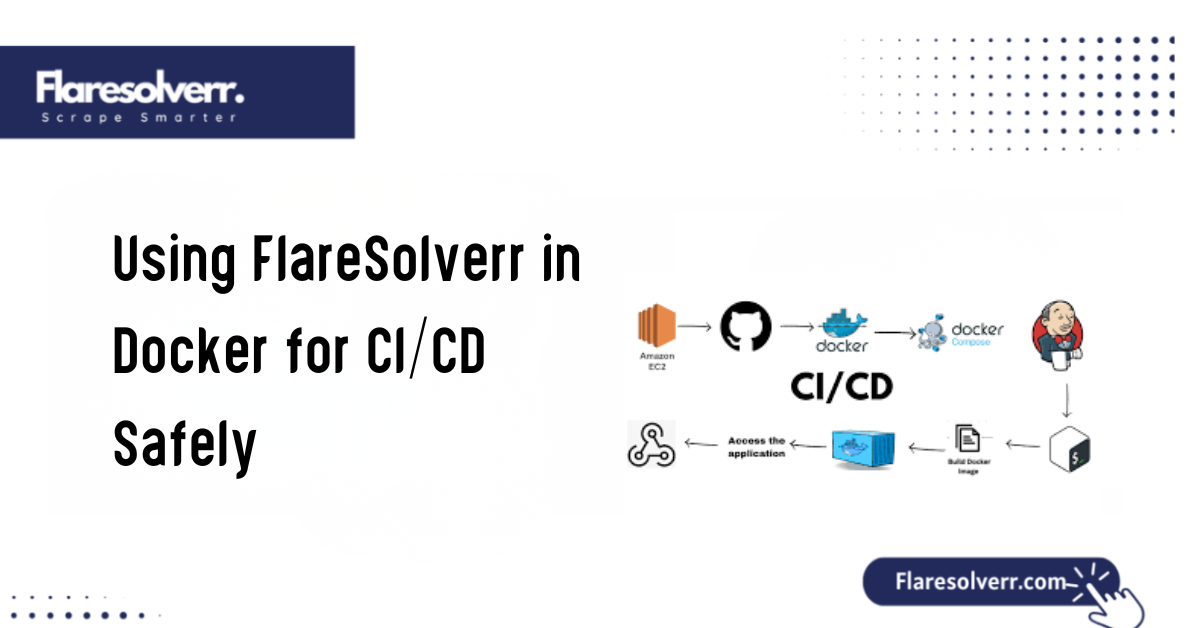
Running FlareSolverr in Docker within CI/CD enables isolated execution, version control, and seamless integration into modern DevOps workflows. This article will guide you through everything you need to know to use FlareSolverr in Docker for CI/CD safely without risking instability, downtime, or pipeline failures.
What You Need to Know Before Using FlareSolverr in CI/CD with Docker
Understanding FlareSolverr’s System Requirements and Dependencies
FlareSolverr depends on:
- A headless Chromium browser
- Node.js and Puppeteer
- Proper network and proxy configurations
In CI/CD, your environment may lack a GUI or full system dependencies, which is why Docker is the preferred method; it encapsulates everything FlareSolverr needs to run correctly.
Risks of Running Headless Browsers in Automated Environments
- High resource consumption (CPU/RAM)
- Pipeline timeouts due to long page loads
- Dependency mismatches during updates
Resource-limited Docker containers and proper version pinning can mitigate these.
Key Differences Between Local, Development, and CI/CD Deployments
CI/CD pipelines are typically ephemeral, meaning containers are created and destroyed for each build. Ensuring consistency between local and CI builds requires:
- Image pinning
- Docker caching
- Environment isolation
Importance of Isolation, Resource Control, and Logging
Docker offers process-level isolation, essential for running sandboxed scraping tasks. Combine that with clear logs and output to make sure your automation pipeline can debug any failure easily.
Preparing Your CI/CD Environment for FlareSolverr Integration
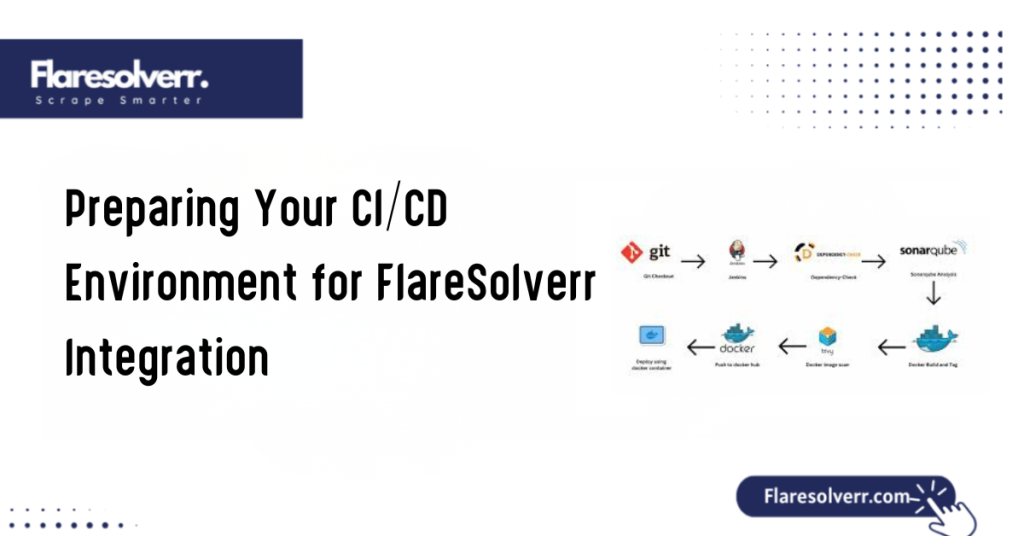
Setting Up Docker on CI/CD Platforms
Ensure your CI/CD platform supports Docker-in-Docker (DinD) or direct Docker execution:
- GitHub Actions: Use the
dockerservice orsetup-dockeraction - GitLab CI/CD: Enable Docker-in-Docker using
docker:latestservice - Jenkins: Use the Docker plugin or a dedicated Docker build agent
Pulling a Stable FlareSolverr Image with Version Pinning
Avoid using the latest tag, which can change unpredictably. Instead, use a version-specific image:
docker pull ghcr.io/flaresolverr/flaresolverr:v3.0.5
Pre-Installing Required Dependencies in the Build Pipeline
If your pipeline also runs scrapers (like Selenium, Playwright, or Puppeteer), make sure to install required dependencies like
- Chromium
- Node.js
- Python 3 (for scripting)
Defining Secure Environment Variables for FlareSolverr Runtime
Use CI/CD secrets or environment variables for configuration. Avoid hardcoding credentials or proxy data. Use:
- name: PROXY_URL
  value: ${{ secrets.MY_PROXY }}
Best Practices for Running FlareSolverr Securely in Docker
Using Read-Only Volumes and Container Permissions
Minimize security risks by:
- Running FlareSolverr containers as non-root users
- Using
--read-onlyflags for volumes - Avoiding exposed ports unless required
Avoiding the Use of latest Tags in CI/CD Configs
Always use specific version tags:
image: ghcr.io/flaresolverr/flaresolverr:v3.0.5
This ensures your pipeline won’t break due to unexpected updates or new bugs introduced in newer builds.
Setting Timeouts and Resource Limits to Prevent Pipeline Hangups
Use CI/CD resource constraints to avoid stuck jobs:
  timeout-minutes: 10
  resources:
    limits:
      memory: 512Mi
      cpu: 1
Enabling Logging and Debug Mode for Better Visibility
Run FlareSolverr with debugging enabled:
FLARESOLVERR_LOG_LEVEL=debug

Pipe logs into your CI/CD console for full traceability.
Automating FlareSolverr Tasks Within a CI/CD Pipeline
Integrating FlareSolverr with Test Suites or Web Scrapers
Your automated scraper can point to the FlareSolverr container via
http://localhost:8191
Add this service as a dependency to your test job and ensure it starts before the scraper.
Triggering Browser Automation or CAPTCHA-Solving Tasks Automatically
You can automate flows like
- Login bypasses
- Data extraction from protected pages
- CAPTCHA solving during automated tests
Chaining FlareSolverr with Other Services or Containers
Use Docker Compose or CI/CD service chaining to:
- Run FlareSolverr
- Launch scraper
- Store extracted data
Running Cleanup Commands to Optimize CI/CD Job Completion
Always clean up running containers or volumes after the job:
docker container stop flaresolverr && docker container rm flaresolverrMonitoring, Debugging, and Troubleshooting in CI/CD
Capturing Logs and Output for Pipeline Diagnostics
Forward container logs to your CI output:
docker logs flaresolverr
Use tools like tee or logging plugins to persist logs for later inspection.
Common FlareSolverr Errors in Dockerized CI/CD
- “Browser failed to launch”: Missing dependencies
- “Timeout reached”: Page load delays or infinite loops
- “Proxy connection failed”: Invalid proxy settings
Validating Browser Launches and Proxy Integrations
Perform a quick test request during CI build:
curl http://localhost:8191/healthcheckThis confirms FlareSolverr is live before running scrapers.
Implementing Fallback Logic for Failing CI Jobs
Create retry logic or failover to a secondary scraping method if FlareSolverr fails to solve a challenge.
Maintaining Long-Term Stability with FlareSolverr in DevOps
Updating Docker Images with Confidence
Use manual reviews or controlled rollouts to update FlareSolverr in a CI/CD environment.
Building Private Mirror Images for Faster Pipeline Execution
If your pipeline needs high availability, build and cache FlareSolverr as a private image:
FROM ghcr.io/flaresolverr/flaresolverr:v3.0.5
Rolling Back to Previous Versions When a New Build Fails
Always keep a backup tag or image ready for rollback. Use Docker’s tag system to switch versions quickly in your pipeline.
Documenting FlareSolverr Version Usage Across Dev Environments
Keep an internal DevOps doc noting:
- FlareSolverr version
- Dependencies
- Proxy provider
- Known issues or exceptions
FAQs
What is the best way to run FlareSolverr in a CI/CD pipeline?
The most reliable method is using Docker with version-pinned images. This ensures consistency, avoids dependency issues, and integrates easily with most CI tools.
Is FlareSolverr compatible with GitHub Actions and GitLab CI/CD?
Yes, FlareSolverr runs smoothly on both platforms using Docker. Ensure proper Docker support is enabled in your runner or workflow.
How do I handle FlareSolverr dependencies in Docker?
The official Docker image includes all required dependencies. If running manually, ensure Chromium and Node.js are appropriately installed.
Can I use FlareSolverr with Puppeteer or Selenium in CI environments?
Absolutely. FlareSolverr is designed to work with Puppeteer and Selenium. Your scraper should send requests through FlareSolverr’s local endpoint.
What’s the safest way to log and monitor FlareSolverr in Docker?
Enable debug logging and route container output to your CI/CD log stream. Use tools like Logstash or CloudWatch for deeper analysis.
How do I fix FlareSolverr failing inside a CI/CD job?
Check logs, validate Docker configuration, confirm browser dependencies, and test proxy settings. Most issues are due to missing permissions or resource limits.
Should I use a stable or nightly build of FlareSolverr for automation pipelines?
Use stable builds for production. Nightly builds are best for testing new features or bug fixes but can be unstable.
How do I prevent FlareSolverr from slowing down my CI/CD process?
Limit browser timeouts, set memory/CPU constraints, and run FlareSolverr in parallel jobs to minimize the impact on build time.
Conclusion
FlareSolverr is a powerful addition to any modern CI/CD pipeline, especially when working with scraping bots, browser-based tests, or anti-bot bypasses. Using Docker securely and in a controlled way ensures that FlareSolverr runs smoothly in automation workflows without affecting your build speed or stability.
By applying the practices outlined in this guide, such as version pinning, resource management, logging, and CI-specific configurations, you can safely integrate FlareSolverr into even the most complex DevOps environments. Use the power of FlareSolverr, Docker, and CI/CD to automate scraping and testing workflows at scale safely and efficiently.
Latest Post: