Introduction
The FlareSolverr API acts as an intermediary between your application and websites protected by Cloudflare. Mimicking human browsing behavior allows automated scripts to fetch web data without being blocked. When the API stops responding, it can be due to network issues, incorrect port setups, endpoint errors, or version conflicts.
Understanding these core elements is critical for developers and system administrators seeking a reliable, smooth scraping workflow.
What is FlareSolverr API and How It Work?
FlareSolverr is a headless browser automation API that handles Cloudflare’s anti-bot protection. It integrates with tools like Python, Node.js, and Puppeteer, enabling developers to automate browser actions for data extraction.
The API relies heavily on three technical aspects for stability:
- Ports—The communication channels through which your API receives requests. Misconfigured ports can block the API entirely.
- Endpoints—The specific URLs or URIs used to access API services. Incorrect endpoints can prevent API requests from reaching the server.
- Version compatibility—Ensuring that your FlareSolverr version matches your scraping tool or automation scripts is essential to avoid unexpected errors.
By focusing on these three pillars, you can minimize downtime and ensure FlareSolverr continues to respond effectively.
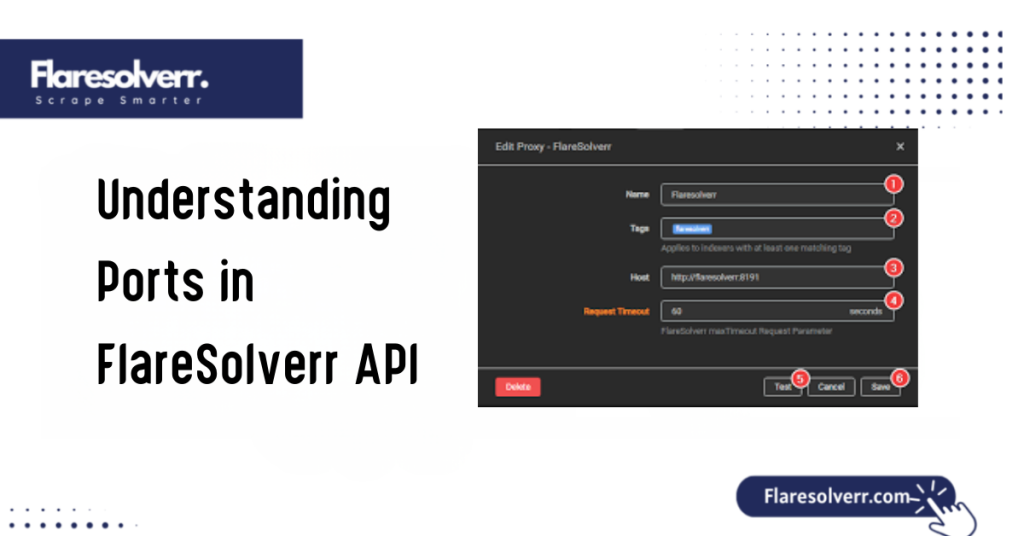
Understanding Ports in FlareSolverr API
Ports are network gateways that allow the API to communicate with your application. By default, FlareSolverr uses a specific port (usually 8191) to listen for requests. If another service occupies the same port, the API will fail to respond.
Common port issues include:
- Port conflicts: Other applications or services may occupy the FlareSolverr port.
- Firewall restrictions: Firewalls may block access to the port, preventing external or local API requests.
- Incorrect port configuration: Specifying the wrong port in your scripts or settings can prevent connections.
Fixing port issues:
- Identify the port currently in use using
netstatORlsofcommands. - Check whether the default port (8191) is blocked or in use by another application.
- Update the FlareSolverr configuration to use an open, unused port.
- Ensure firewall rules allow traffic on the selected port.
Correct port configuration is often the first step in restoring FlareSolverr functionality.
Endpoint Issues Explained
The endpoint is the URL path or API route through which your application interacts with FlareSolverr. Misconfigured endpoints are a frequent cause of API not responding errors.
Common endpoint problems:
- Using an incorrect base URL or path.
- Missing trailing slashes in the endpoint URL.
- Calling endpoints that are deprecated in the current API version.
Steps to fix endpoint issues:
- Verify the base URL (e.g.,
http://localhost:8191/for local setups. - Ensure you are calling the correct endpoint, such as
/v1,. - Test endpoints using tools like Postman or cURL to check API responsiveness.
- Update automation scripts to match the current endpoint structure.
Proper endpoint configuration ensures your requests reach the API server successfully.
Version Conflicts and Compatibility Problems
FlareSolverr frequently updates its software to fix bugs, improve Cloudflare bypass techniques, and support new features. Using an outdated or mismatched version can lead to failures.
Common version-related issues include:
- The API is not responding due to outdated dependencies.
- Automation scripts designed for newer versions are failing on older FlareSolverr releases.
- Deprecated endpoints or changed request structures in new versions.
How to fix version conflicts:
- Check your current FlareSolverr version with
docker ps(for Docker installations) orflarectl --version. - Compare it with your automation tool’s supported version.
- Upgrade or downgrade FlareSolverr to align versions.
- Test all scripts after version adjustments.
Maintaining version alignment between FlareSolverr and your tools ensures smooth, uninterrupted API responses.
How to Diagnose FlareSolverr API Not Responding
When troubleshooting, a systematic approach helps isolate the issue. Most failures involve ports, endpoints, or versions, but other factors, such as firewall restrictions, network issues, or improper installation, can also contribute.
Step-by-step diagnosis:
- Check API logs: FlareSolverr logs often indicate whether the issue is port-related, endpoint misconfiguration, or version mismatch.
- Test connectivity: Use
curl http://localhost:8191/Postman to ensure the API endpoint is reachable. - Validate version compatibility: Confirm the FlareSolverr version matches your automation tool.
By following these diagnostic steps, you can pinpoint the exact cause of API failures and apply the correct fix.
Checking API Connectivity
To ensure the API is reachable:
- Open a terminal or command prompt.
- Run
curl http://localhost:8191/or accesshttp://127.0.0.1:8191/via a browser. - If the API responds with JSON or status codes, connectivity is intact.
- If not, investigate port conflicts, firewall rules, or network issues.
Tools for testing connectivity:
- cURL
- Postman
- Telnet for port verification
Debugging Version Problems
Version mismatches often present as cryptic errors or failed responses.
Steps to debug:
- Check FlareSolverr’s current version.
- Compare with your automation tool (Python script, Node.js bot, etc.).
- Update FlareSolverr using Docker or package managers.
- Restart the service and test endpoints again.
Fixing FlareSolverr API Connection Problems
Once the root cause is identified, applying the correct fix restores API functionality. The most common solutions revolve around ports, endpoints, and versions.
Steps to fix connection problems:
- Adjust firewall and network settings to allow the API port.
- Correct endpoint configurations in automation scripts.
- Resolve port conflicts by assigning a new, free port.
- Ensure the API version aligns with your tool.
Restarting and Resetting API Services
Sometimes, restarting the API service clears temporary issues:
- Use
docker restart flaresolverrfor Docker installations. - Restart the system service if installed natively.
- Reset the configuration files to their default settings if a misconfiguration is suspected.
Ensuring Version Alignment
Version alignment prevents unexpected errors:
- Update FlareSolverr regularly.
- Keep automation scripts compatible with the latest API version.
- Test endpoints after each upgrade.
Best Practices to Prevent API Downtime
To minimize FlareSolverr failures:
- Monitor ports and endpoints for conflicts.
- Keep FlareSolverr updated.
- Automate version checks in scripts.
- Maintain proper logging for quick diagnosis.
- Regularly test API responses using Postman or cURL.
FAQs About FlareSolverr API Issues
Why is the FlareSolverr API not responding?
Port conflicts, endpoint misconfigurations, firewall restrictions, or version mismatches usually cause it.
How do I check which port FlareSolverr is using?
By default, FlareSolverr uses port 8191. Use commands like netstat -tuln “or” or check the configuration file to confirm.
What is the correct endpoint for FlareSolverr?
Endpoints vary by version, commonly /v1 or /run. Always verify against the current API documentation.
How can I fix version mismatch errors in FlareSolverr?
Check your FlareSolverr version and compare it with your automation tool. Upgrade or downgrade as needed.
Can firewall settings block the FlareSolverr API?
Yes, firewalls may block the default port, preventing the API from responding. Open the required port to fix this.
How do I test if FlareSolverr is running correctly?
Use cURL or Postman to send a request to the API endpoint and check for a valid JSON response.
Is FlareSolverr compatible with all browsers?
FlareSolverr relies on headless Chromium browsers, so compatibility depends on the supported browser version in your setup.
How do I reset FlareSolverr to default settings?
Stop the service, delete or rename the configuration file, and restart the API. It will regenerate default settings.
Conclusion
Experiencing the FlareSolverr API not responding can be frustrating, but most issues stem from port, endpoint, or version issues. By carefully diagnosing connectivity issues, validating endpoints, and aligning versions, you can quickly restore API functionality.
Additionally, implementing best practices such as monitoring ports, regularly updating FlareSolverr, and testing endpoints will minimize future downtime. Following this guide ensures your automation workflows remain uninterrupted, reliable, and optimized for performance.
Latest Post: